The Music Stem / Editor
The Music Stem Editor
An Online Music Editor to Tune and Master a Song
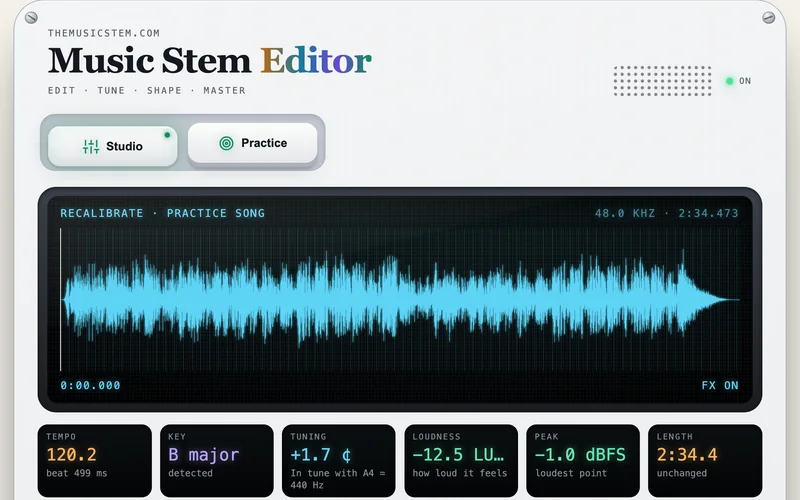
The Music Stem Editor opens a recording and measures its tempo, key, tuning, loudness and peak level. You can then correct the tuning, change the key or the tempo, edit the waveform and master the song for streaming.
 The Music Stem EditorMeasure a recording and correct its tuning, key, tempo and loudness.Open the Editor
 What the Editor Measures
When a recording opens, the Editor shows these values on its display:
- Tempo in beats per minute
- Key and mode (major or minor)
- Tuning in cents (hundredths of a semitone) above or below A4 = 440 Hz
- Loudness over the whole song in LUFS, the unit streaming services use
- Peak level in dBFS (decibels below the digital maximum of zero)
- Length to the millisecond
Check these readings before you change anything.
How to Correct the Tuning of a Recording
A recording that sits slightly sharp or flat sounds out of tune against other instruments. The tuning card shows how far off the recording is, the correction you apply and the result. All the notes move by the same number of cents, so the intervals between the notes stay the same. A semitone is 100 cents. Most listeners hear a track as in tune when it lies within about five cents of the reference.
You can also change the reference pitch. Choose A = 442 Hz for an orchestra that tunes higher, A = 415 Hz for Baroque pitch, or a value of your own.
How to Change the Key or the Tempo of a Song
The key card transposes a recording by whole semitones while the tempo stays the same. Use it to move a song into a singer's range or to hear a piece in another key. Shifts of up to about three semitones sound natural on a voice.
The tempo card changes the speed in two ways. The Keep pitch mode changes the tempo and leaves the key alone. The Tape mode changes the speed and the pitch together, as a turntable does. Tempos between 80 and 125 percent of the original sound clean.
Loudness and Mastering for Streaming
LUFS measures how loud music feels over time. Streaming services turn loud tracks down to their own level. A song mastered louder than that level is turned down and loses some of its contrast between loud and soft. A song that matches the level keeps that contrast. Set the loudness target, and the card moves the output gain toward it and keeps the peaks below a ceiling. A before-and-after display shows how the frequency balance changed.
The Effects Rack and the Scenes
The effects rack runs in this order: pitch and time, equalizer, filter, dynamics, character, space and output. You can switch off any effect to compare the sound with and without it.
Scenes set every knob at once and give you a starting point. They include Radio Master, Vocal Presence, Lo-Fi and Slowed + Reverb. The controls stay adjustable after you choose a scene.
To edit the waveform, drag across a passage to select it. Then trim, cut, silence, fade, reverse, repeat, normalize or loop it. Undo takes you back one step.
Studio Practice
Practice mode sets studio exercises, such as correcting the tuning or changing the tempo without changing the key. Other exercises ask you to find a frequency boost, trim an intro on the beat or master a song for streaming. The Editor checks your result against the goal and gives a score with feedback.
Practice Songs with a Real Voice and Band
The Editor opens with a demo song. It also holds unfinished recordings that Rosan Sharma shared for teaching. The songs are “Just to Feel Ur Touch in the Mornin,” “Recalibrate” and “Heavens Got a Way.” Find the tempo, key and tuning of each song before you work on it.
Exports are 24-bit WAV files at the sample rate of the recording.
More Tools from The Music Stem
See a mistake on this page? Write to info@themusicstem.com or read how to report an error.